
Opening a Repository
Learn how to open and manage Git repositories in GitGUI.
Opening Your First Repository
From the Welcome Screen
When you launch GitGUI without a repository open, you'll see the welcome screen:
- Click Open Repository
- Navigate to your Git repository folder
- Select the folder and click Open
GitGUI will load the repository and display the commit graph.
Using Keyboard Shortcut
Press Ctrl+O (or Cmd+O on macOS) at any time to open a new repository.
Recent Repositories
GitGUI remembers your recently opened repositories for quick access.
From Welcome Screen
Recent repositories appear below the "Open Repository" button. Click any repository to open it instantly.
Quick Switch with Alt+O
Press Alt+O to open the Recent Repositories modal from anywhere in the app. This is the fastest way to switch between projects.
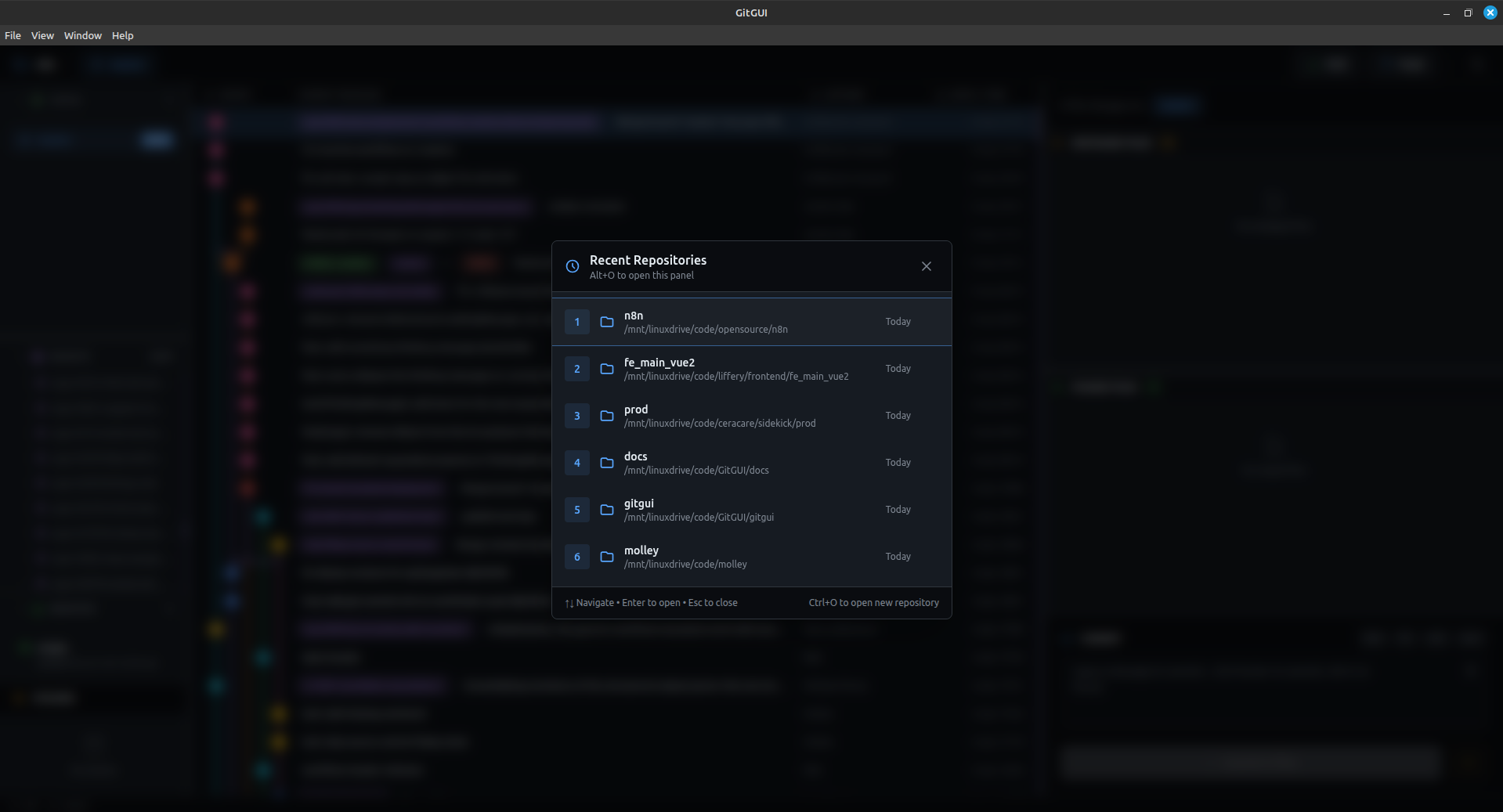
Managing Recent Repositories
- Hover over a recent repository to see the X button
- Click X to remove it from the list
- The list stores up to 10 recent repositories
What Happens When You Open a Repository
When you open a repository, GitGUI:
- Validates it's a Git repository (has a
.gitfolder) - Loads the commit history and branch information
- Watches for file changes to auto-refresh
- Displays the commit graph and current status
Repository Requirements
GitGUI works with any standard Git repository:
- ✅ Local repositories
- ✅ Cloned repositories (GitHub, GitLab, Bitbucket, etc.)
- ✅ Repositories with submodules
- ✅ Large repositories (lazy-loads commits for performance)
Not a Git Repository?
If you select a folder that isn't a Git repository, GitGUI will show an error. Initialize a repository first with git init or clone an existing one.
Working with Multiple Repositories
GitGUI focuses on one repository at a time for simplicity. To work with multiple repositories:
- Use
Alt+Oto quickly switch between recent repositories - Or open multiple GitGUI windows (each can have a different repository)
Auto-Refresh
GitGUI automatically watches your repository for changes:
- File changes — Staging panel updates when you modify files
- Git operations — Graph refreshes after external Git commands
- Manual refresh — Press
Ctrl+Rto force a refresh
Troubleshooting
"Not a Git repository" error
The selected folder doesn't contain a .git directory. Either:
- Select the correct folder (the one containing
.git) - Initialize a new repository with
git init
Repository loads slowly
For very large repositories with thousands of commits:
- GitGUI loads commits incrementally (scroll to load more)
- Initial load may take a few seconds
Changes not appearing
Press Ctrl+R to manually refresh. If issues persist:
- Check if the file watcher is working
- Restart GitGUI
Next Steps
Now that you have a repository open, learn about:
- The Commit Graph — Understanding the visual history
- Staging & Committing — Making your first commit